So someone is inviting you to their Plex server
Nice. Let's help you get Plex set up without all the extra noise. Plex can pull in stuff from streaming services like Netflix, Apple TV, HBO, and Paramount, but in this guide we're keeping things focused on your friend's server and the libraries they share with you. Go through these steps in order and you'll end up with a clean Plex setup that works across your devices.
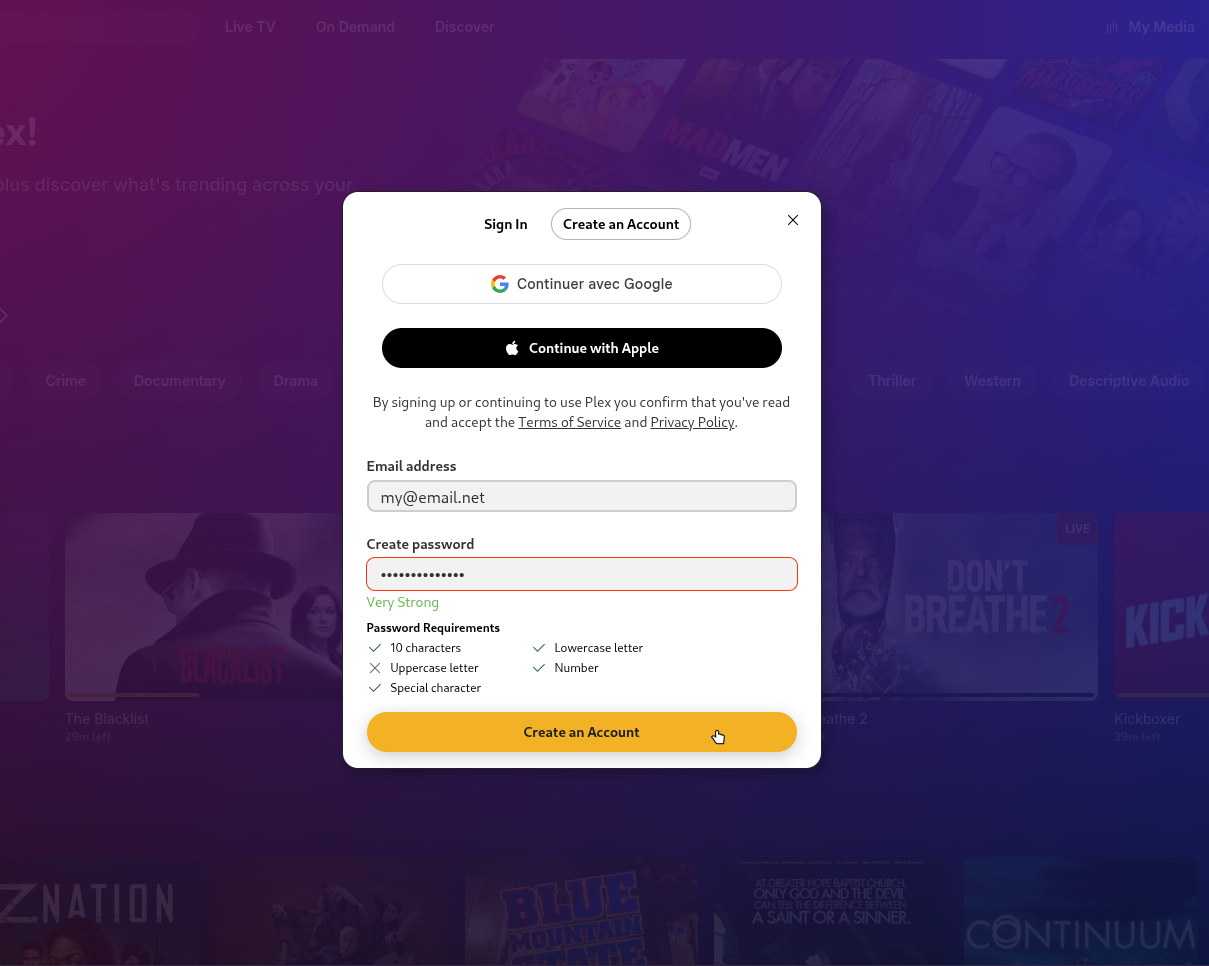
Create your account
Make a free Plex account using Sign Up, or continue with Google or Apple if you prefer single-sign-on. This account is your identity that grants access to servers shared with you on web, mobile, and TV apps.
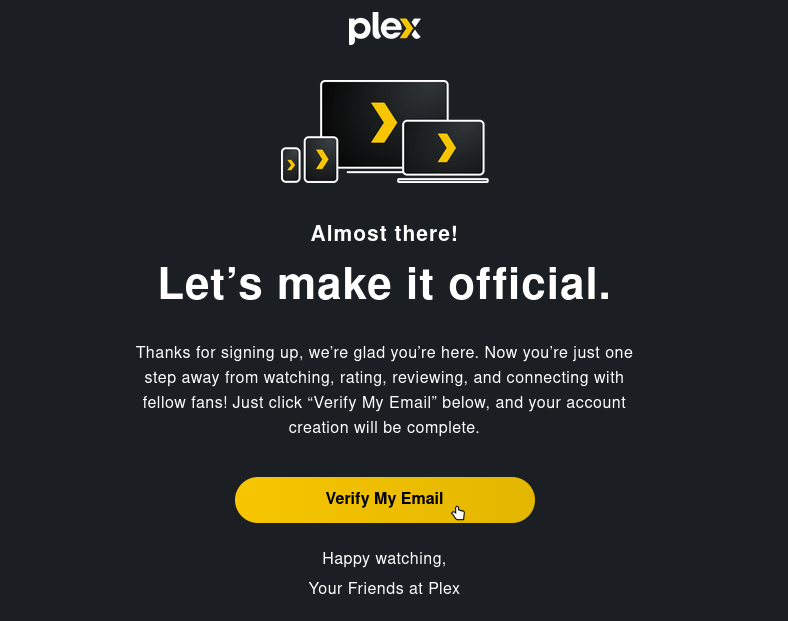
Verify your email
Plex sends a verification email immediately after sign-up. Check your inbox and click the link before proceeding. Without verification your account is limited and you may not be able to accept server invites or access shared libraries.
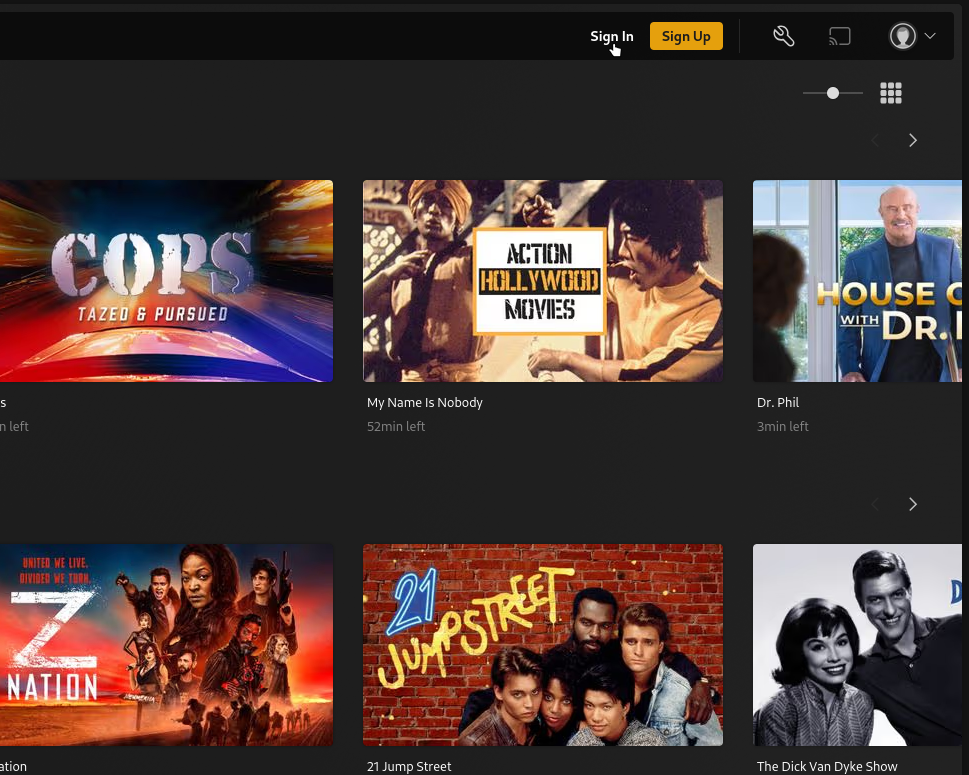
Sign in to the Plex Web App
Go to app.plex.tv and sign in with your new account. This is the actual Plex interface, separate from the marketing site, where you'll manage settings and browse libraries. You need to be signed in here before the next steps will work.
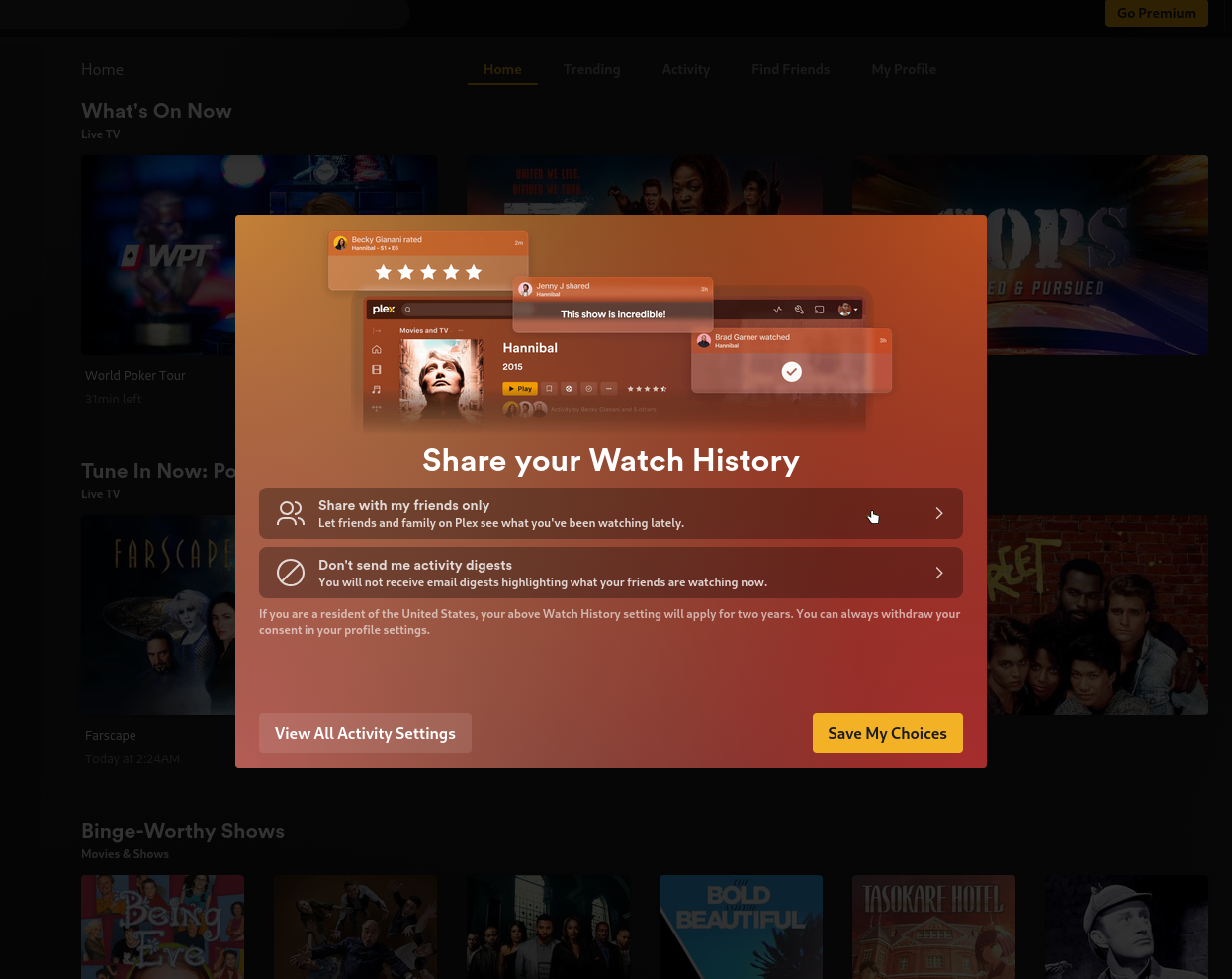
Set your watch history privacy
On first sign-in, Plex shows this prompt with two links: "Share with my friends only" and "Don't send me activity digests". Click each link to configure them on the next screens before coming back to hit Save My Choices. If you just hit Save My Choices now you'll skip those settings.
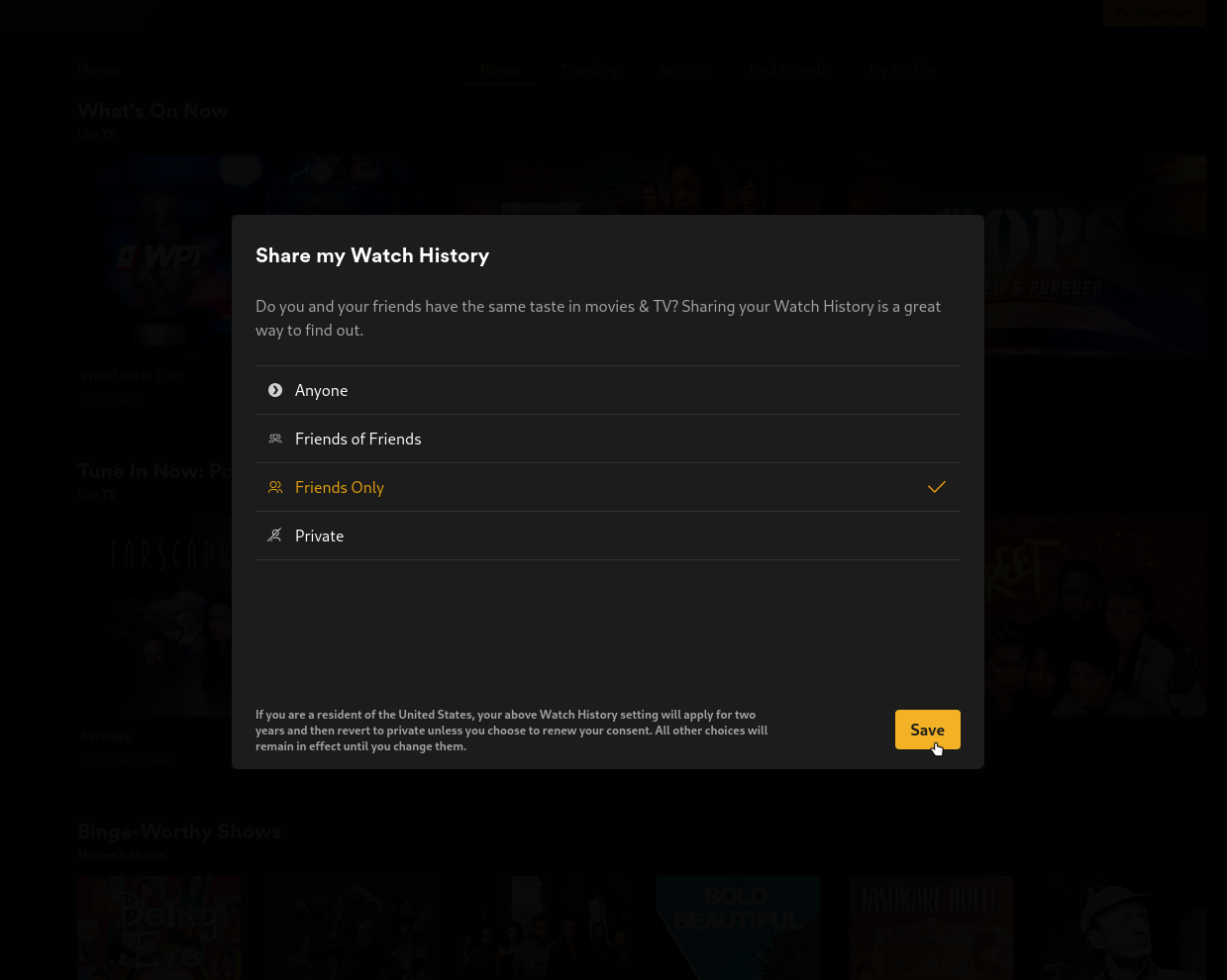
Set who can see your watch history
After the main prompt, Plex lets you fine-tune who can see what you watch: Anyone, Friends of Friends, or Private. Set it to Private or Friends Only depending on your preference.
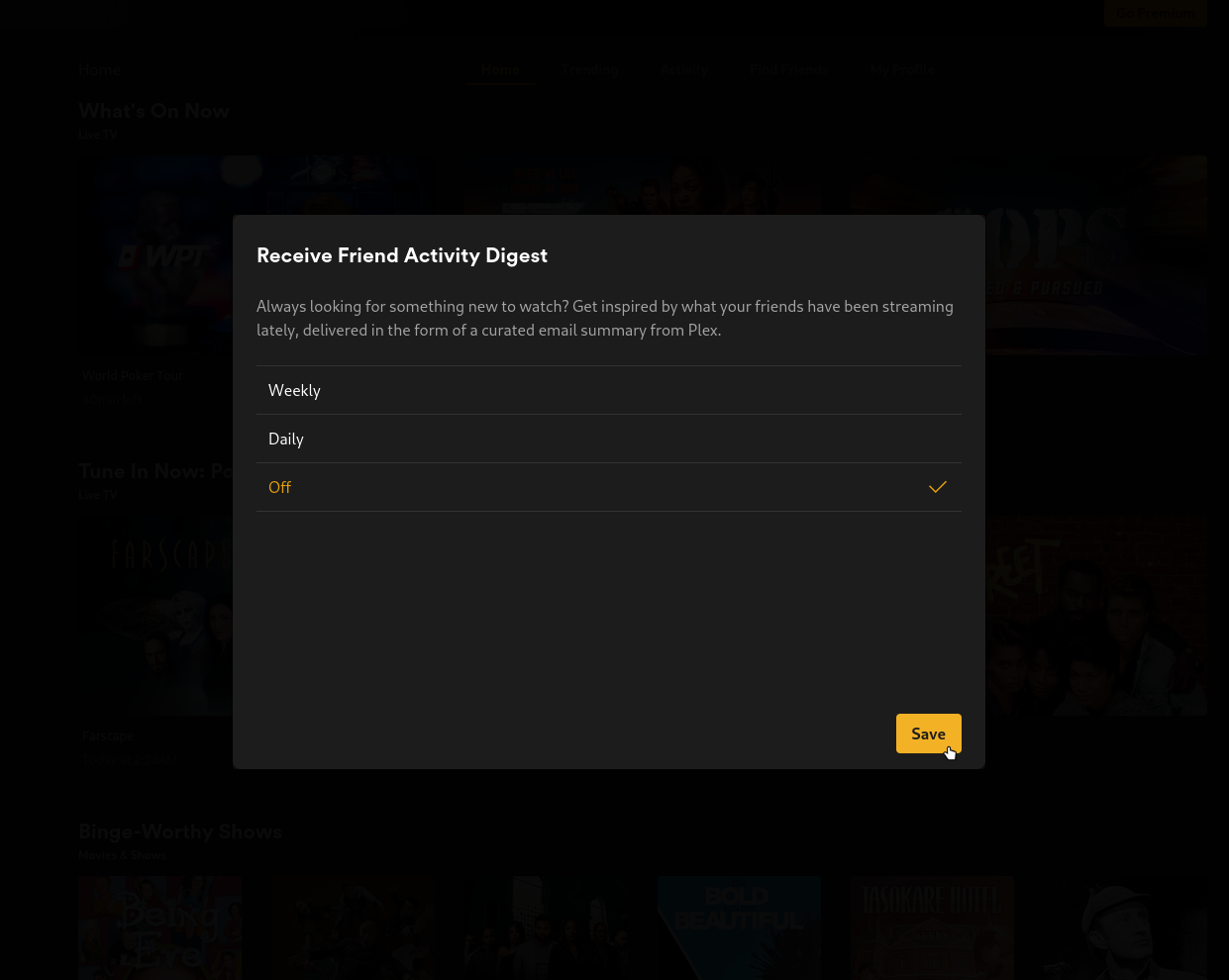
Turn off the activity digest emails
Plex also asks whether you want a weekly or daily email digest of what your friends are watching. Set it to Off unless you actually want those emails.
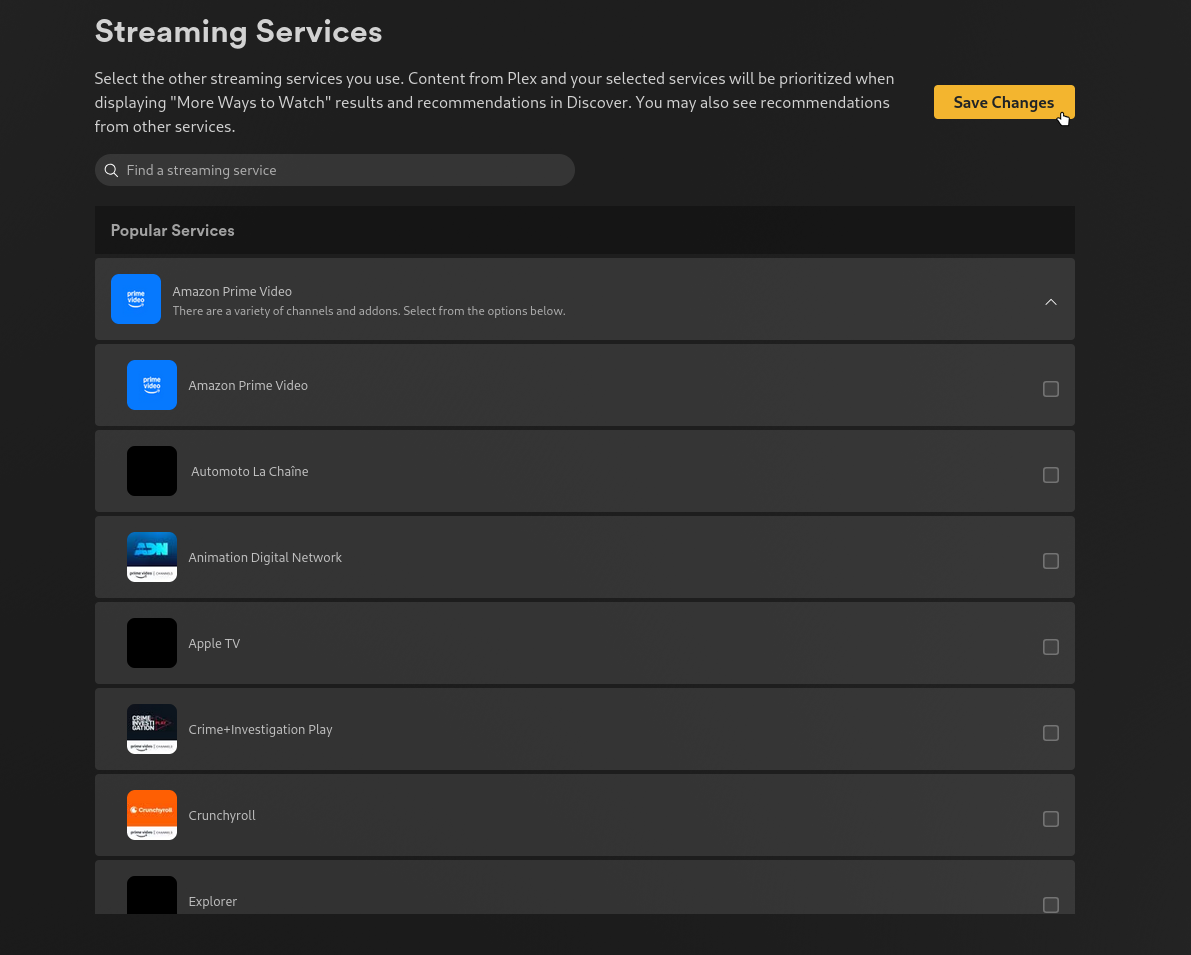
Check streaming provider settings
In Settings → Streaming Services, make sure no providers are ticked. By default none should be selected, but it's worth confirming. This may vary by region or based on what you agreed to in the consent step. Even with none selected you may see suggested content on Home; Plex may be pulling that through other channels.
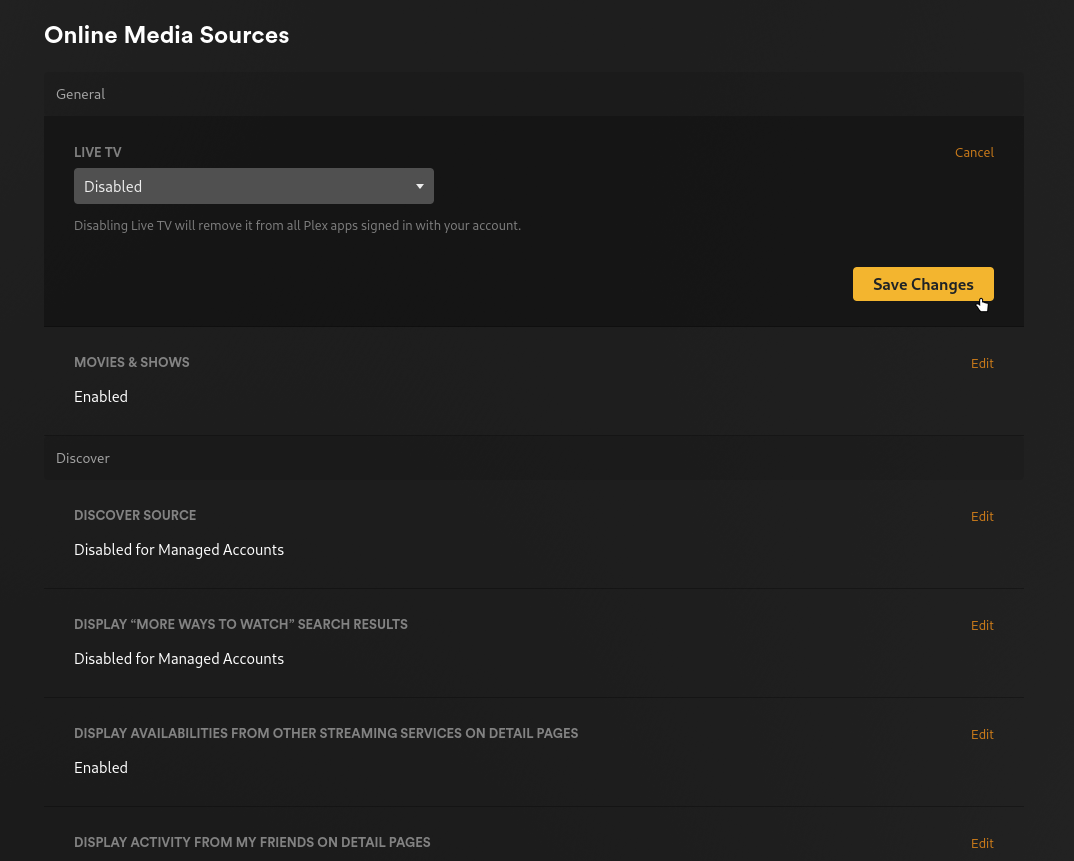
Disable Live TV
Go to Settings → Online Media Sources. Under General, click Edit next to Live TV and set it to Disabled, then Save Changes. This removes Plex's free live channel rows from your Home screen.
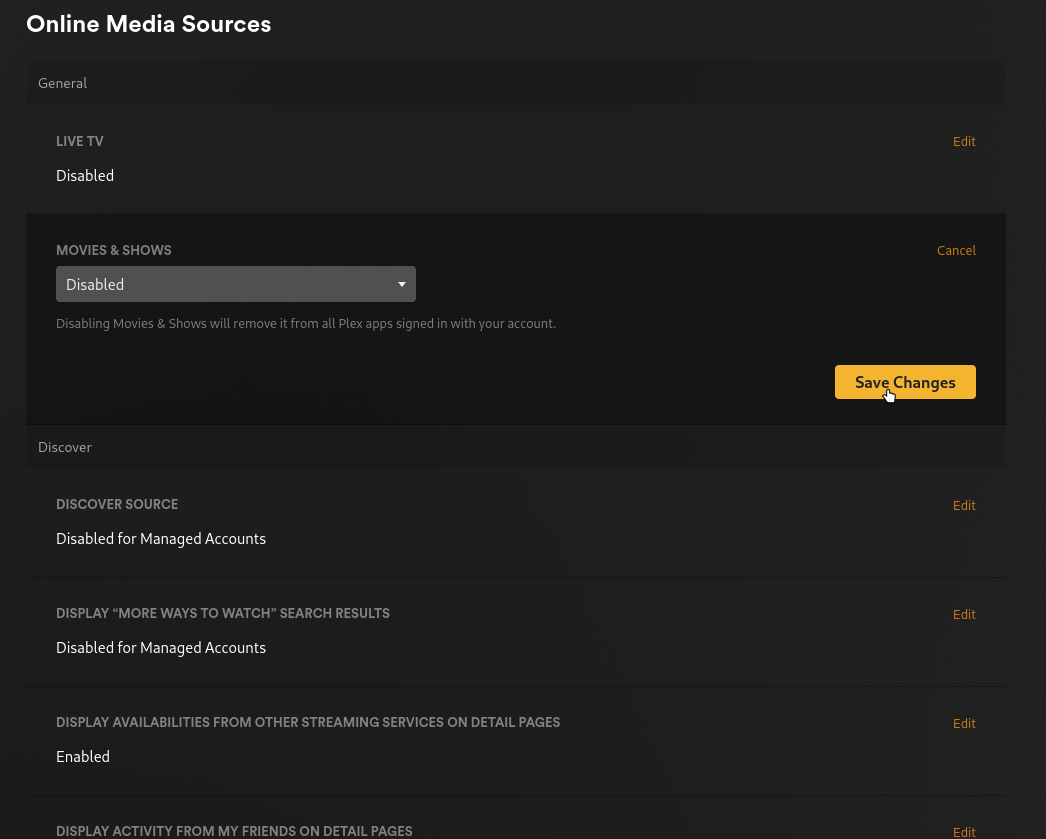
Disable Movies & Shows
Still in Online Media Sources, click Edit next to Movies & Shows and set it to Disabled, then Save Changes. This removes Plex's on-demand catalog from Home and search results.
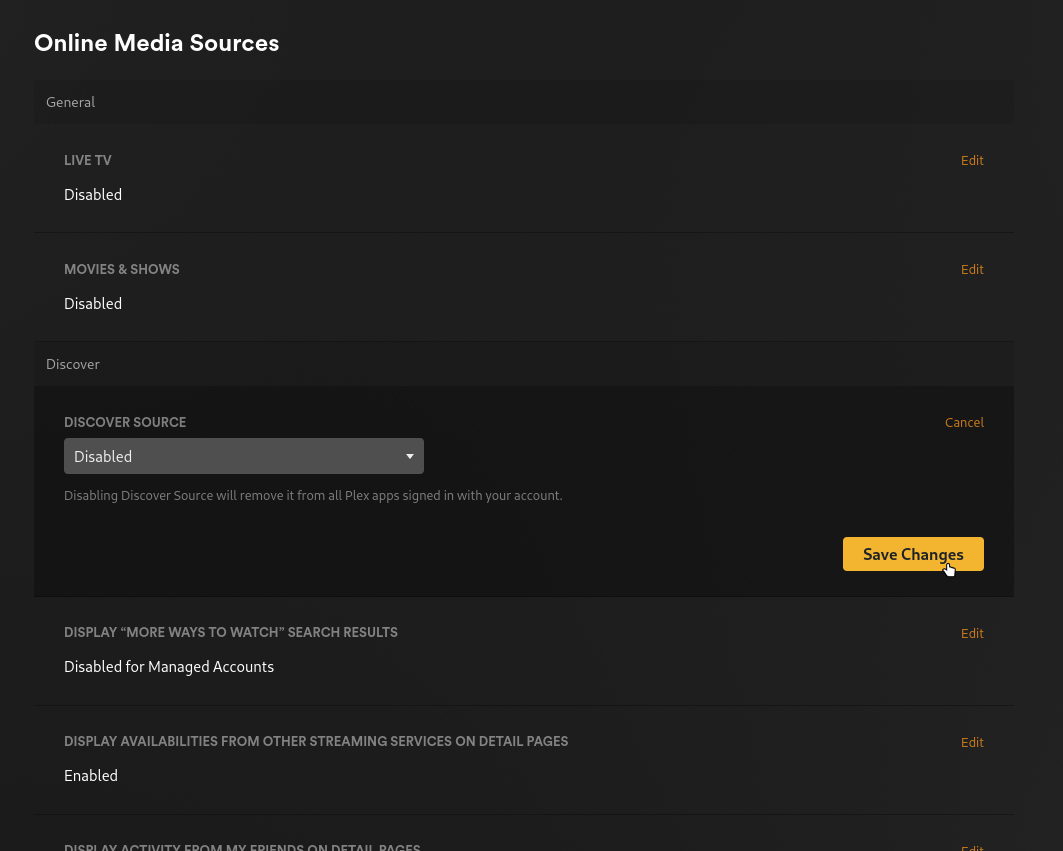
Disable Discover Source
Under the Discover section, click Edit next to Discover Source and set it to Disabled, then Save Changes. This removes the Discover tab and "More ways to watch" overlays on movie and show pages.
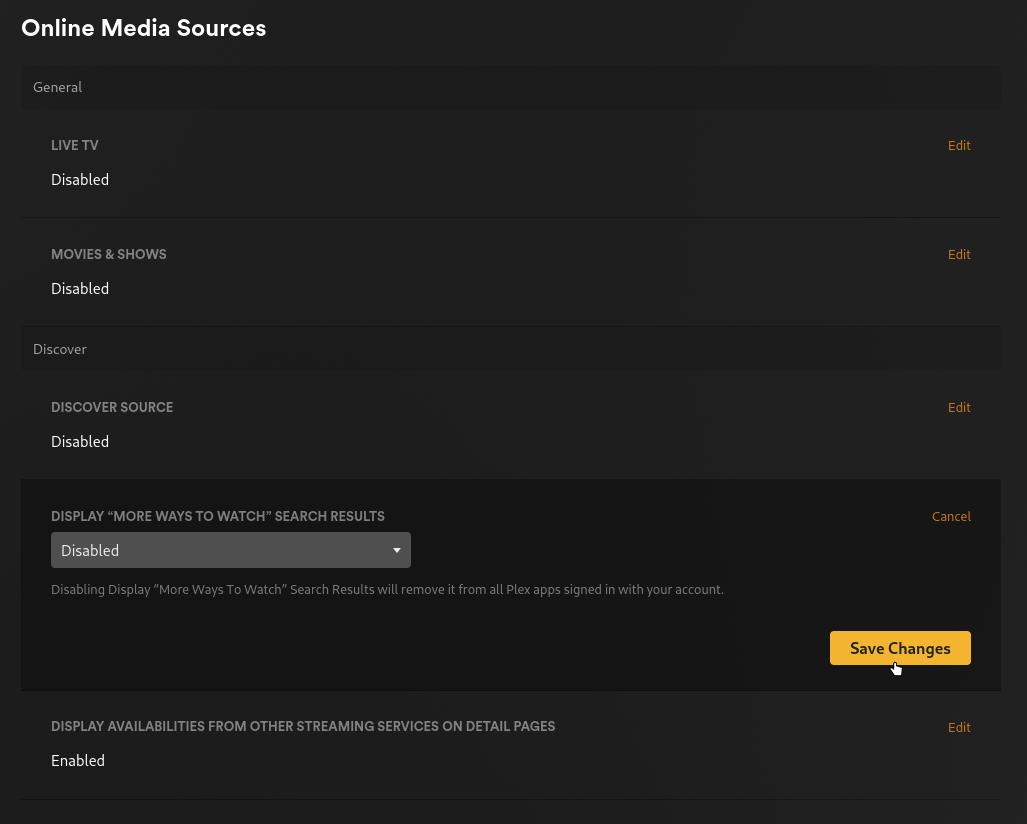
Disable "More Ways to Watch" search results
Click Edit next to Display "More Ways to Watch" Search Results and set it to Disabled, then Save Changes. This stops Plex from showing streaming service purchase/rental links in search.
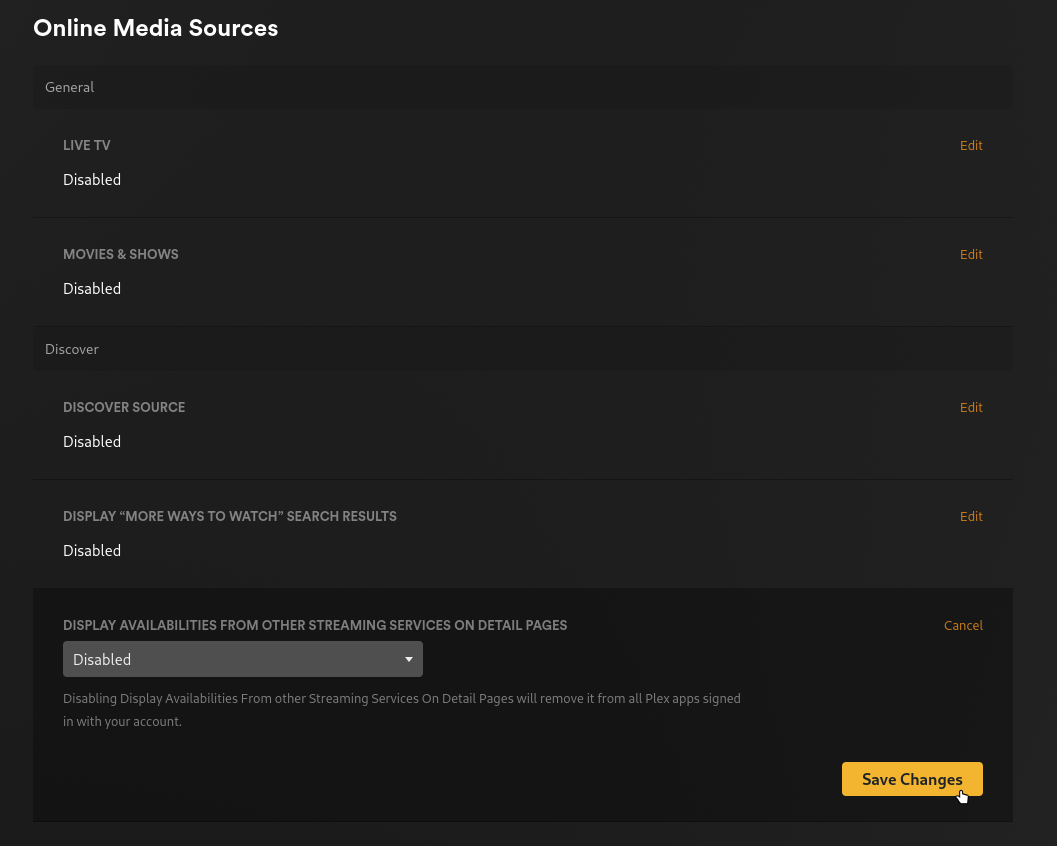
Disable streaming service availabilities on detail pages
Click Edit next to Display Availabilities From Other Streaming Services On Detail Pages and set it to Disabled, then Save Changes. This removes the "also available on Netflix/etc" section from movie and show detail pages.
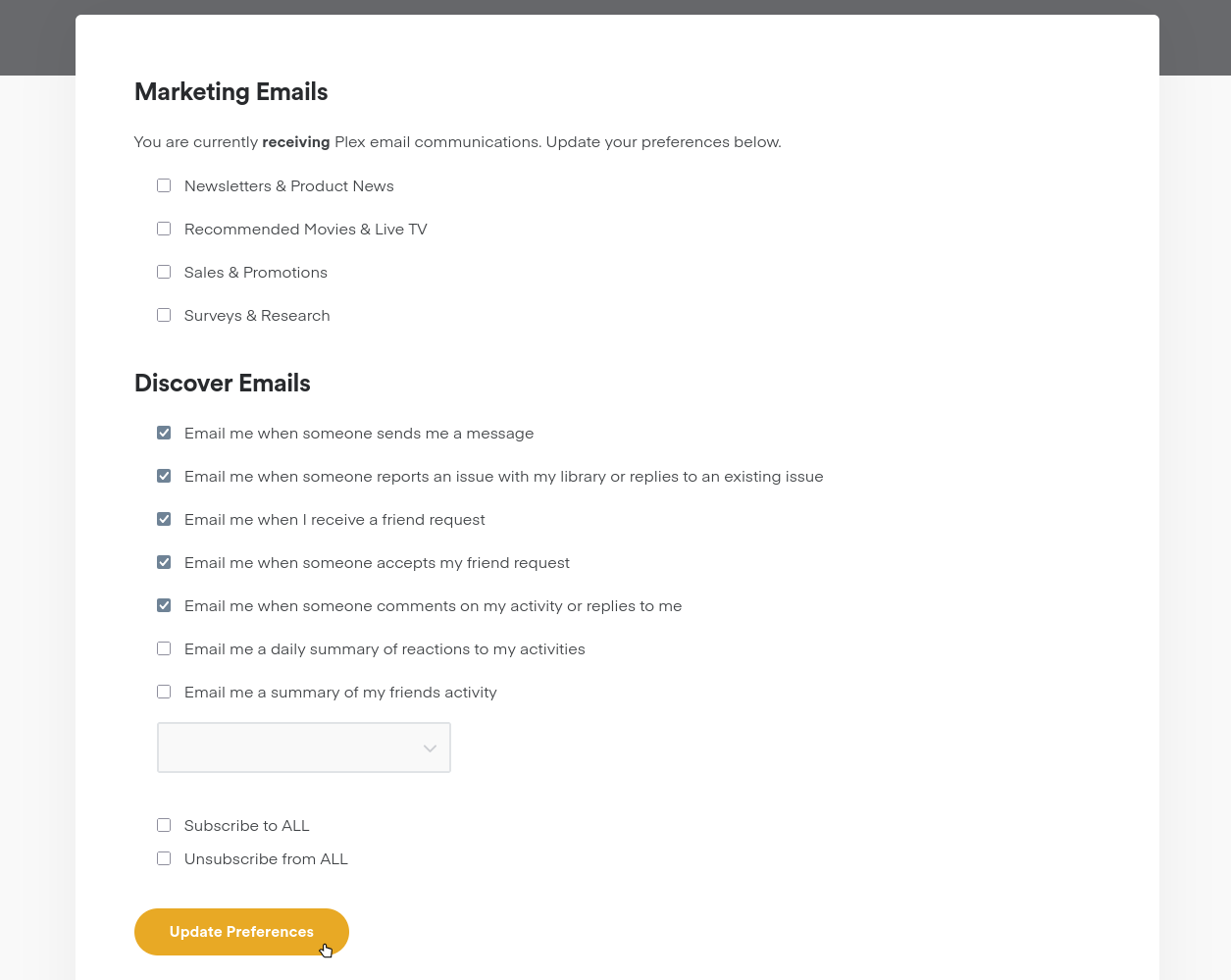
Unsubscribe from marketing emails
Go to plex.tv/email-preferences and uncheck all four Marketing Emails: Newsletters & Product News, Recommended Movies & Live TV, Sales & Promotions, and Surveys & Research. Then click Update Preferences. The Discover Emails (friend requests, messages etc.) are fine to leave as-is.
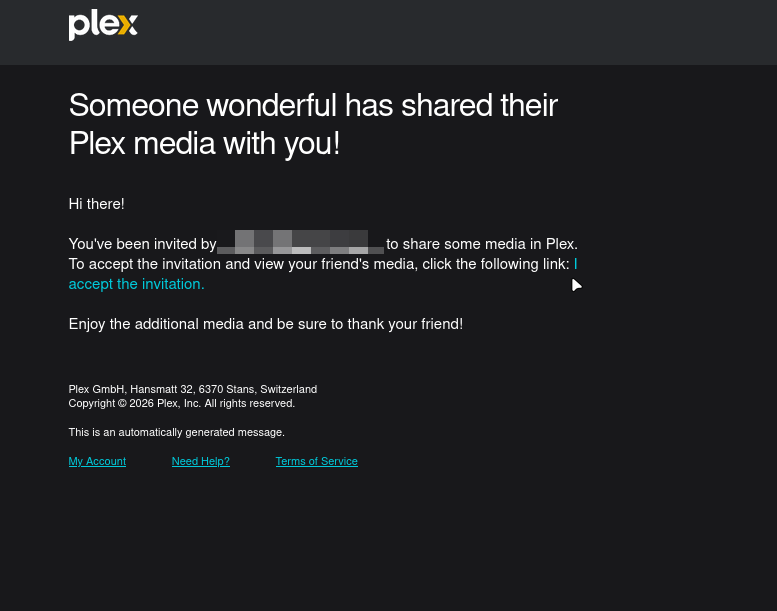
Accept the invite
Your friend sends an access invite; accept it from the email or within the app so their server and allowed libraries attach to your account automatically. Once accepted, the shared libraries will be available on web, mobile, and TV clients under your account.
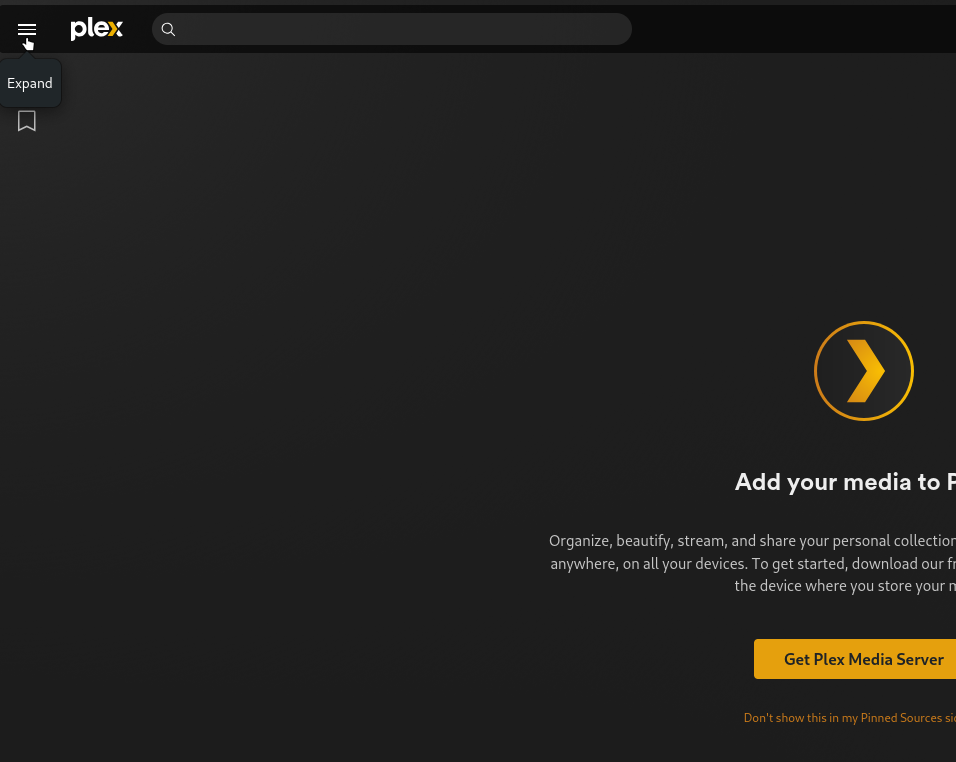
Expand the sidebar
Click the Expand button at the top of the collapsed sidebar to open it. This reveals the full navigation including Home, Watchlist, and the More section where all available libraries live.
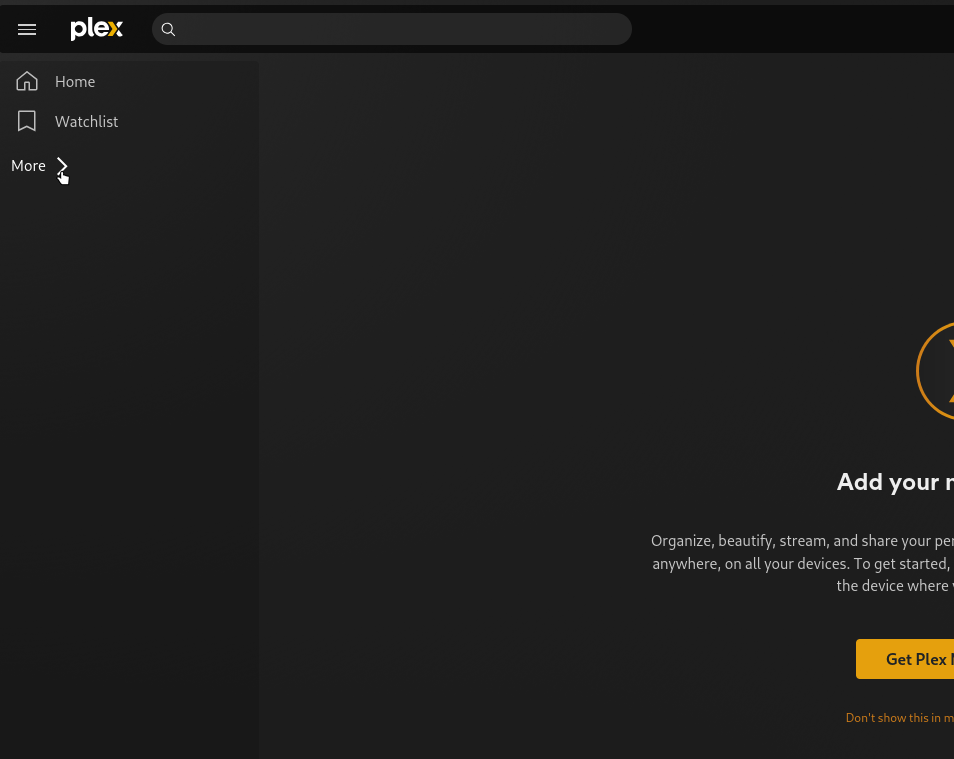
Open More to see all libraries
Click More in the sidebar to see everything available to your account, including your friend's shared libraries. Nothing is pinned yet on a fresh account, so this is where you'll find what to add.
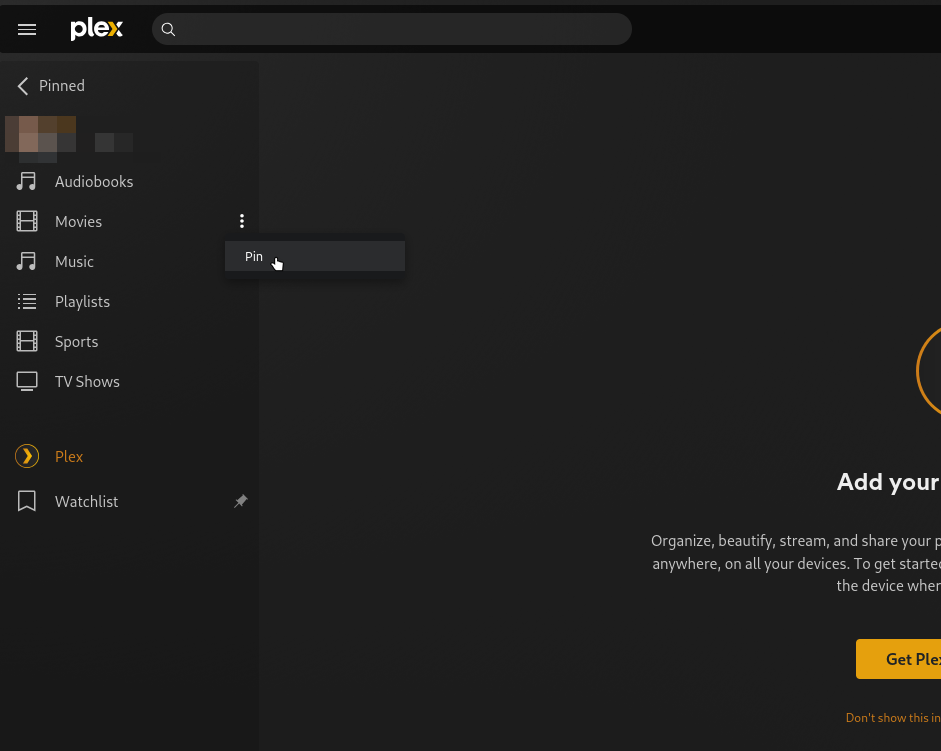
Pin the libraries you want
Click the three-dot menu next to any library and choose Pin to add it to your sidebar. Home screen rows are controlled by the server owner, not you. If you want a library to appear as a Home row, ask your friend to add it on their end.
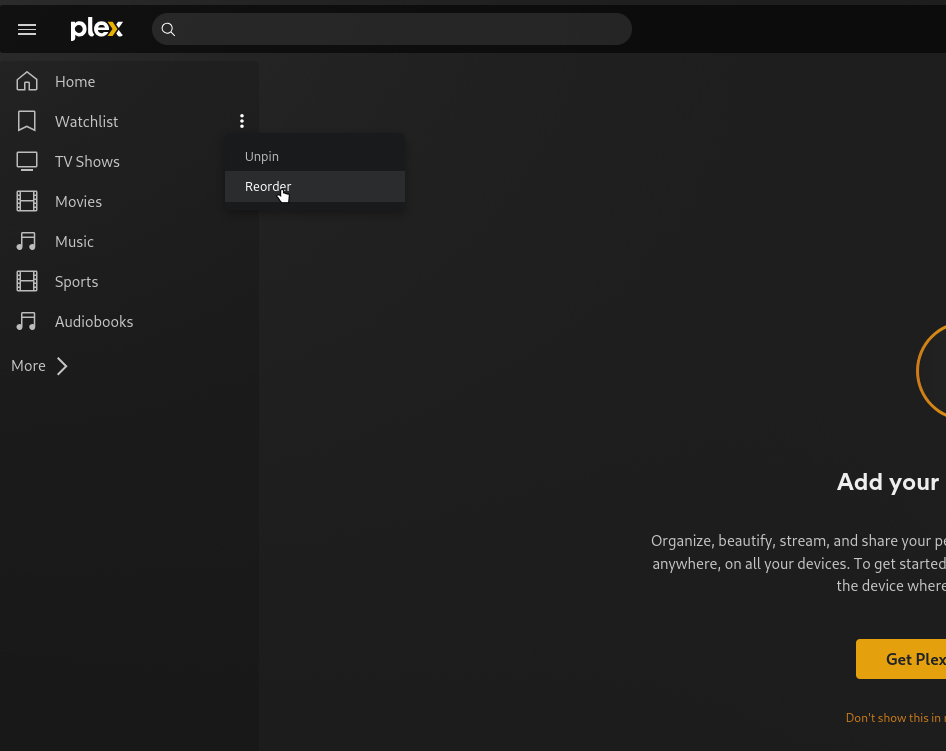
Reorder your pinned libraries
Click the three-dot menu next to any pinned item and choose Reorder to move it up or down. Put your most-used libraries at the top. Home rows are set by your friend. Share the link below with them if they want to customise what appears on your Home.
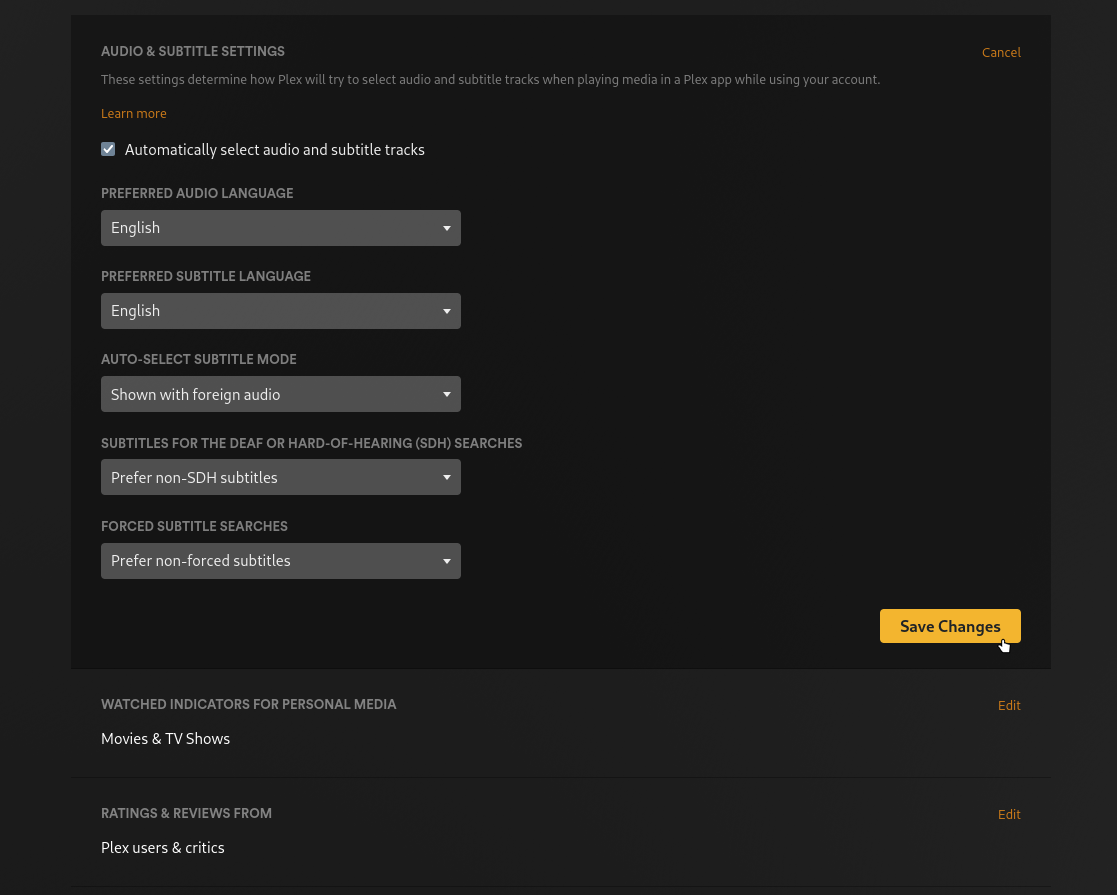
Set subtitle and audio language defaults
Leave "Automatically select audio and subtitle tracks" checked. Set your Preferred Audio Language and Preferred Subtitle Language, and set Auto-Select Subtitle Mode to "Shown with foreign audio" so subtitles only appear when the audio isn't in your language. These are account-level settings that carry over to all clients.
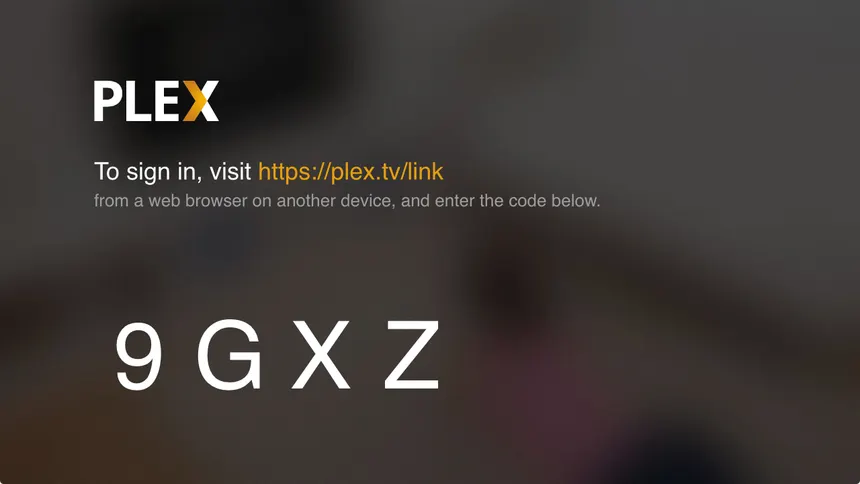
Install and link the apps
Install the Plex app on your phone or tablet and sign in with your account. On TVs and streaming boxes, install Plex, choose Sign In, and you'll see a short code. Visit plex.tv/link on another device, enter the code, and the TV links without typing credentials on the TV.
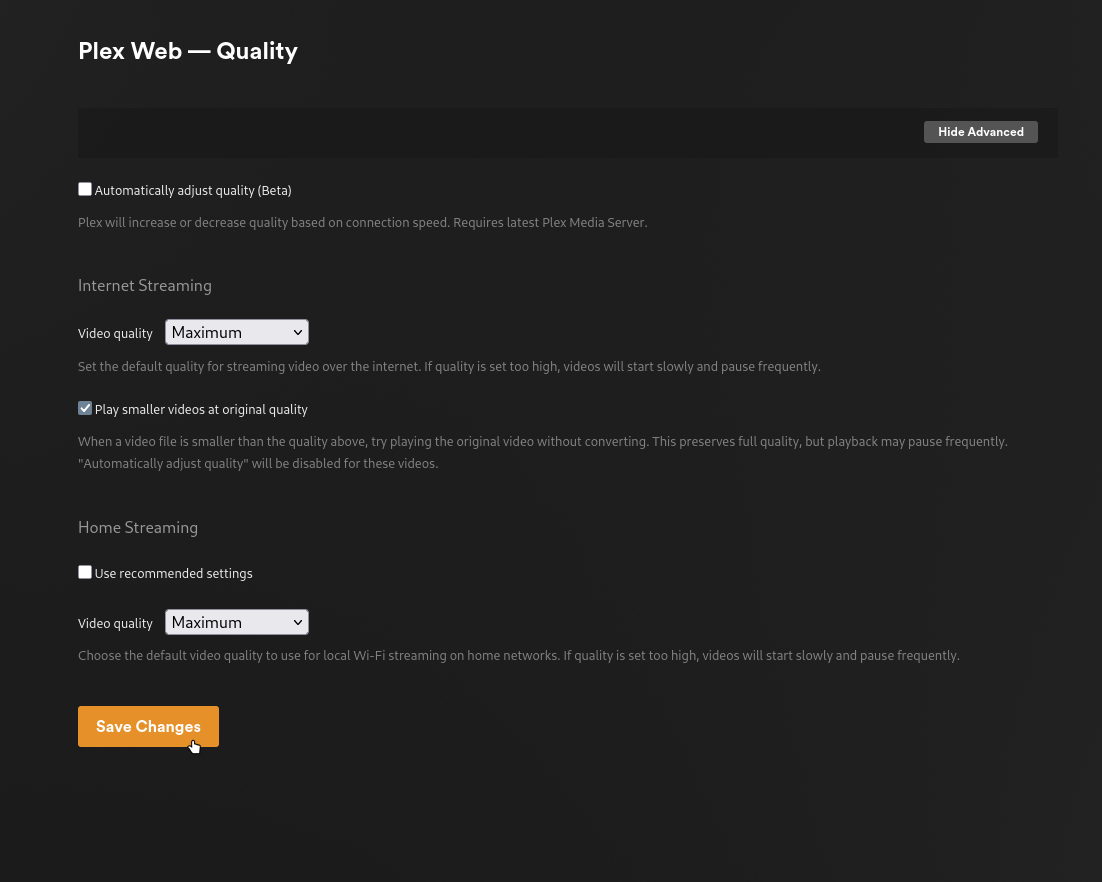
Set quality to Maximum on each device
Quality settings are per-device, so do this on each app after installing. In Plex Web go to Settings → Quality, uncheck "Automatically adjust quality", and set both Internet Streaming and Home Streaming to Maximum, then Save Changes. This prevents unnecessary transcoding.
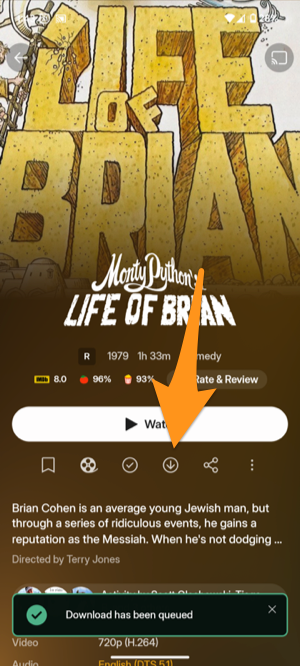
Optional: download for offline
If you know you'll be on a plane, in the woods, or anywhere without internet, download what you want to watch in advance. Tap the download icon on any movie or episode in the mobile app. Requires Plex Pass on the server owner's account and the server must allow downloads for shared users.
Quick troubleshooting
If a TV won't link, regenerate the sign-in code and enter it again while logged into the correct account on the link page or try the QR option if available. If you can't see the server while away from home, the owner may need to enable Remote Access on their end and you should ensure your network/VPN/firewall isn't blocking discovery.
You're All Set!
You now have a clean, focused Plex experience with your friend's content. Enjoy streaming!
Additional Resources
• For privacy settings and ad management, check out the Plex Privacy Settings Guide
• To manage recommendations and content discovery, visit Manage Recommendations
• For commercial removal and advanced features, see Removing Commercials